DFM2HTML Templates: Layout Starters for Every Site Structure
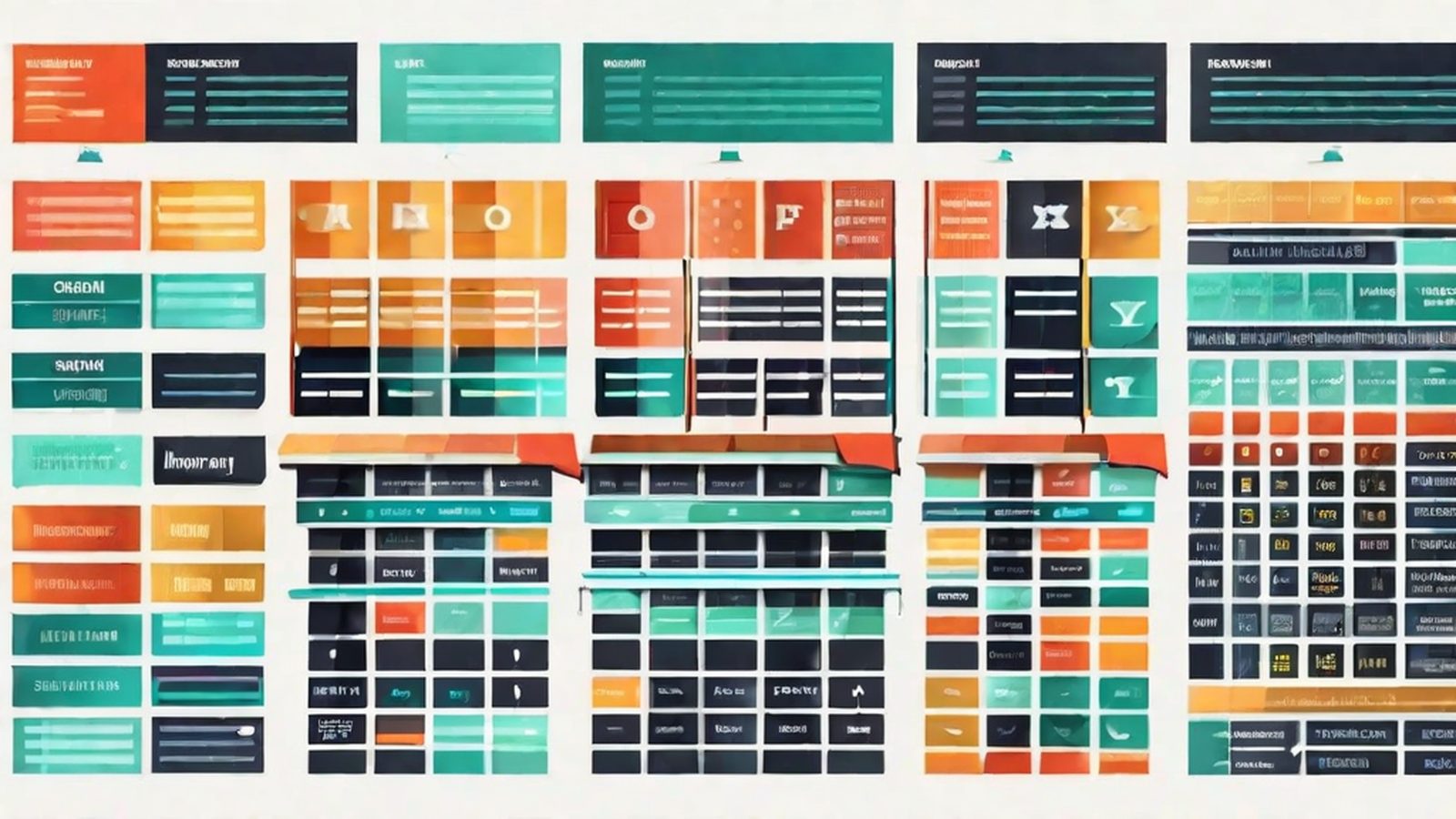
Templates are the structural foundation of every site you build in DFM2HTML. This page is your starting point for choosing, understanding, and customizing the layout starters that ship with the Windows HTML editor. After more than a decade of building sites with template-driven workflows, I can say with confidence that the decision you make here, which template skeleton to start from, shapes every editing session that follows. Below you will find a browsable gallery of every template in the library, along with detailed notes on layout style, typical use cases, editing entry points, and the practical patterns that make each structure work. Whether you are looking for a single column content page, a two column documentation layout, a frame-based navigation shell, or a compact brochure structure, this library has a ready-made starting point. You will also find links to the features overview, the tutorials section, and the download page so you can move from browsing to building without losing your place.
What Template-Driven Building Actually Means
In DFM2HTML, a template is not a decorative skin that you drape over content. It is a structural blueprint that defines the skeleton of your page: the navigation container, the content columns, the header zone, and the footer region. When you select a template, you are selecting a layout contract. The editor then enforces that contract as you add content, which means your pages stay structurally consistent even as the material inside them changes.
This approach solves a problem that anyone who has built more than a handful of sites will recognize. Without a structural starting point, every new page becomes a blank canvas that tempts you into ad hoc positioning, inconsistent column widths, and navigation that drifts between pages. Templates eliminate that drift. They give you a repeatable framework that keeps your site feeling like a single, coherent project rather than a collection of loosely related pages.
The practical benefit is speed. Once you understand the editing entry points in a template, adding new pages to your site takes minutes, not hours. You drop in content, adjust headings, set image positions, and export. The structure is already solved.
How to Choose the Right Template
Template selection depends on three things: how much navigation your site needs, how many content columns each page requires, and whether your audience expects a traditional document layout or a more segmented visual structure.
For small sites with five to ten pages and no deep hierarchy, a single column template works best. It keeps the reader focused on the content and avoids the visual overhead of sidebars and frame borders. For documentation sites, reference hubs, or anything with a persistent table of contents, a two column layout gives you a fixed sidebar for navigation alongside a wide content area. For sites that need a locked navigation frame visible on every page, the frame-based templates provide that structure, though they carry specific considerations around how modern browsers handle frames.
The gallery below lets you browse every template visually before committing. Click into any template to see its full layout anatomy, editing guidance, and example content.
Template Gallery
Template 1
Clean single column layout. Ideal for content-focused pages, articles, and simple business sites where readability is the priority.
Template 2
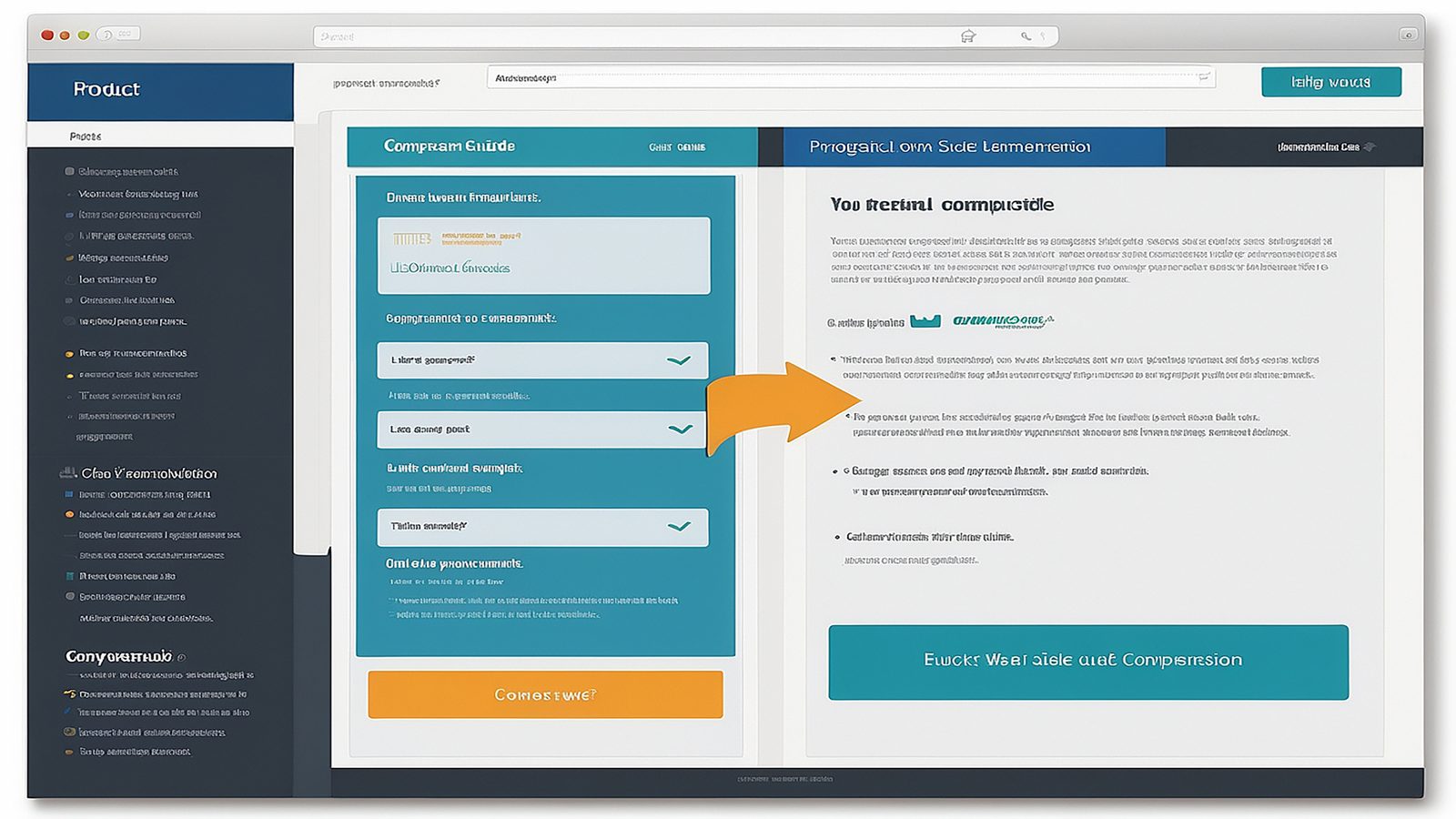
Two column layout with sidebar navigation. Works well for documentation hubs, reference sites, and pages with persistent table of contents navigation.

Template 4 (Frames)
Frame-based navigation structure with locked sidebar. Provides a persistent menu visible across all pages without reloading the navigation on each click.
Template 5
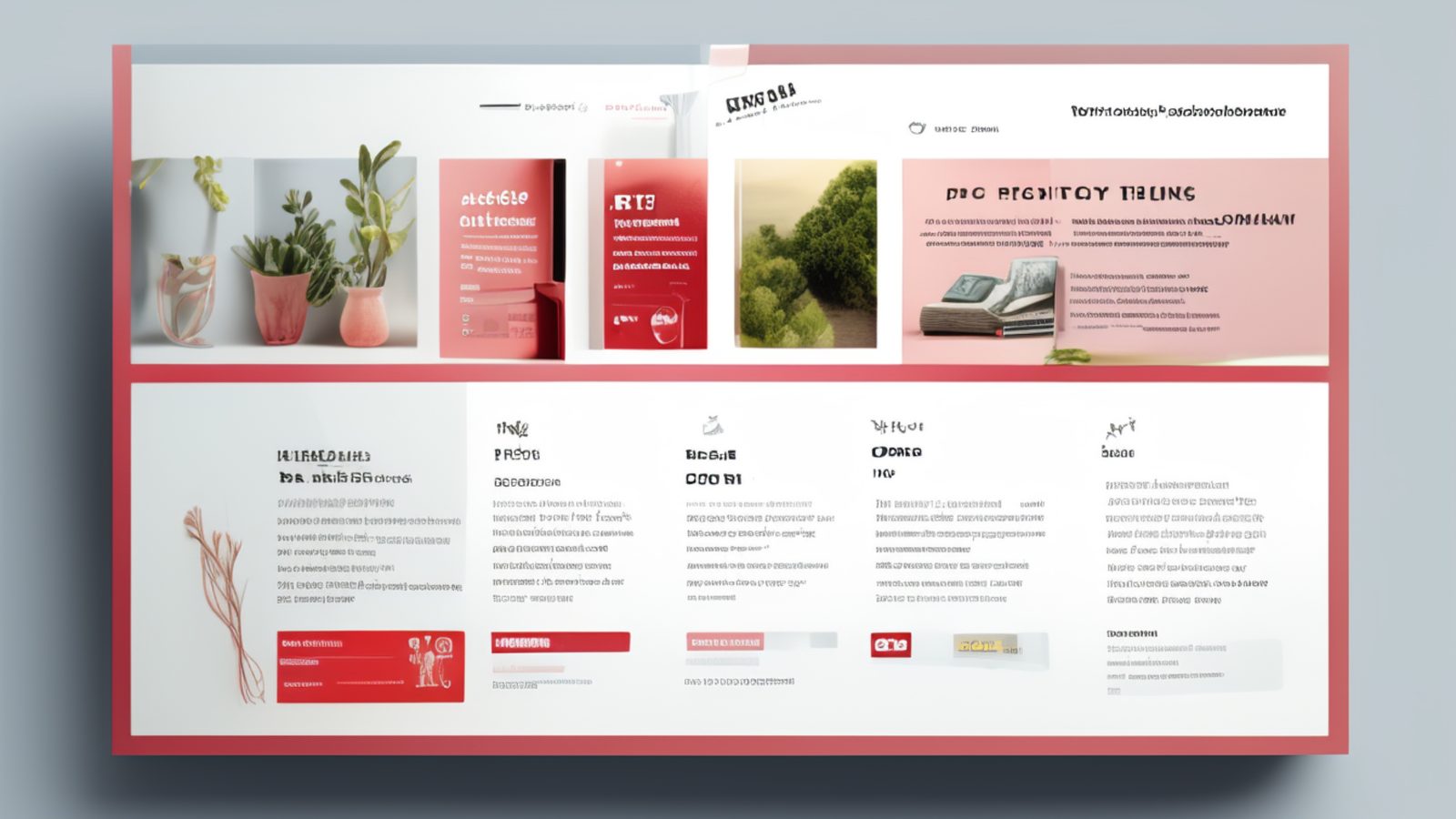
Compact brochure layout for small business pages and single-purpose sites. Tight structure that puts key information above the fold.

Template 7 (Frames)
Extended frame layout with top navigation bar and side panel. Suited to utility sites and internal tools where navigation must remain fixed during content browsing.
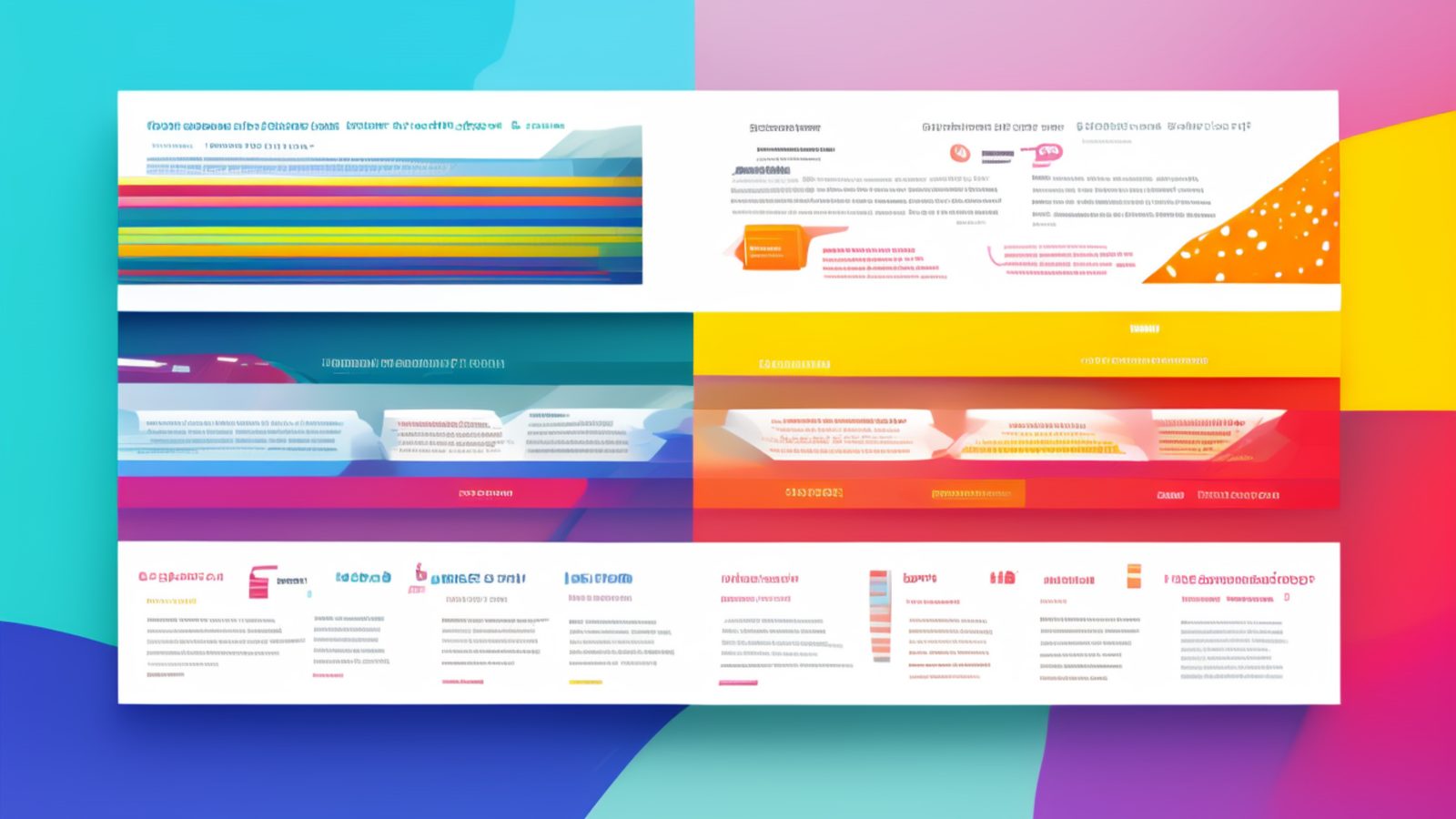
Template 8
Structured multi-section layout with defined header, content, and footer zones. Good for company pages, portfolios, and sites with distinct content sections.
Single Column Templates: When Simplicity Wins
The single column templates, led by Template 1, strip the layout down to its essential form: a header, a content flow, and a footer. There is no sidebar competing for attention, no frame border consuming screen width. The reader gets a clean vertical scroll through your material.
This structure works for any site where the primary goal is reading. Articles, about pages, contact information, event details, and product descriptions all benefit from the focused layout. The editing pattern is straightforward. You open the template, place your heading, drop in your text blocks and images, set the navigation links in the header, and export. Because there is only one content column to manage, the alignment and spacing decisions are minimal.
One practical tip: single column templates scale well across screen sizes because there is no column ratio to break. Your page will look proportional on a wide desktop monitor and a narrow tablet screen without extra work on your part.
Two Column Templates: Navigation Alongside Content
Template 2 introduces a second column, typically used for navigation, a table of contents, or a sidebar of related links. The content column remains the dominant visual element, but the sidebar gives your visitors a persistent orientation tool.
This layout is common on reference sites, documentation projects, and knowledge bases. If your site has more than fifteen or twenty pages, a sidebar navigation panel helps visitors find material without returning to the home page on every click. The editing workflow adds one step compared to single column work: you need to populate the sidebar with your link structure. In DFM2HTML, this is done through the same drag and drop tooling you use for content blocks, so the sidebar is not treated as a special case.
When using a two column template, keep the sidebar content concise. Long navigation lists push the visible content area down and create the impression of clutter. Group your links into sections with clear headings, and limit each section to five or six items. If you need deeper nesting, consider a JavaScript-driven collapsible menu. The tutorials section covers that integration in detail.
Frame-Based Templates: Persistent Navigation Shells
The frame-based templates, including Template 4 (Frames) and Template 7 (Frames), use HTML frames to keep a navigation panel visible at all times. When the visitor clicks a link in the navigation frame, only the content frame reloads. The menu stays locked in place.
This pattern was widely used in the late 1990s and early 2000s for internal documentation systems, intranet dashboards, and utility sites. It has a real usability benefit: the navigation context never disappears. The visitor always knows where they are in the site structure, because the menu is always visible and highlighted.
However, frames carry specific considerations that you need to understand before choosing one. Modern search engines index individual frame pages separately, which can lead to visitors landing on a content page outside the frameset. Deep linking is more complex because the URL in the browser address bar points to the frameset, not the individual content page. And some accessibility tools handle frame focus navigation differently than standard page flow.
If you are building an internal tool, a local documentation set, or any site where search engine indexing is not a concern, frame-based templates are an efficient choice. For public-facing sites where organic discovery matters, consider the standard single or two column templates instead. The features page covers more of the technical details behind each output format.
Brochure and Multi-Section Templates
Template 5 and Template 8 serve different purposes but share a common design philosophy: they organize content into defined visual zones rather than a continuous document flow. Template 5 is a compact brochure layout where the most important information sits above the fold. Template 8 provides a structured multi-section layout with clear separation between header content, body sections, and footer material.
These templates are ideal for business landing pages, service descriptions, portfolio entries, and any page where you want to control the visual hierarchy tightly. The editing pattern involves filling predefined zones rather than flowing content into a long column. Each zone has its own spacing, alignment, and typography context, which gives you finer control over how each section reads.
A common workflow with brochure templates is to start with the key action. What do you want the visitor to do? Put that call to action in the top zone, support it with evidence in the middle zones, and close with contact information or next steps in the footer zone. The template structure naturally guides this kind of top-down persuasion layout.
Editing Patterns Across Templates
Regardless of which template you choose, the editing mechanics in DFM2HTML stay consistent. You select elements on the canvas, modify properties in the inspector panel, and preview the result in the built-in viewer. The differences between templates are structural, not procedural. A single column template has fewer containers to manage. A frame-based template has separate HTML files for the navigation and content areas. But the click, edit, preview loop is the same everywhere.
A few patterns apply across all templates. First, start with the navigation. Get your site structure into the menu before you start dropping in content. This prevents the common mistake of building pages that do not appear in the navigation until you remember to add them later. Second, use the preview frequently. Small adjustments to spacing and image size look different in the preview than they do on the editing canvas, and catching alignment issues early saves time. Third, export a test version to a local folder before publishing. Open the exported files in a browser, click through every link, and verify that images load and menus work. The tutorials cover this validation workflow in more detail.
From Template to Finished Site
The templates in this library are starting points, not finished products. The real work happens after you choose a structure and begin filling it with your content. But that starting point matters more than most people expect. A well-chosen template eliminates hours of layout trial and error and keeps your site visually consistent from the first page to the last.
If you are new to DFM2HTML, start with Template 1. It is the simplest structure and the best way to learn the editor without fighting layout complexity. Once you are comfortable with the editing workflow, explore the two column and frame-based options for your next project.
Ready to start building? Download DFM2HTML and open a template to see how the layout translates into a working editing session.